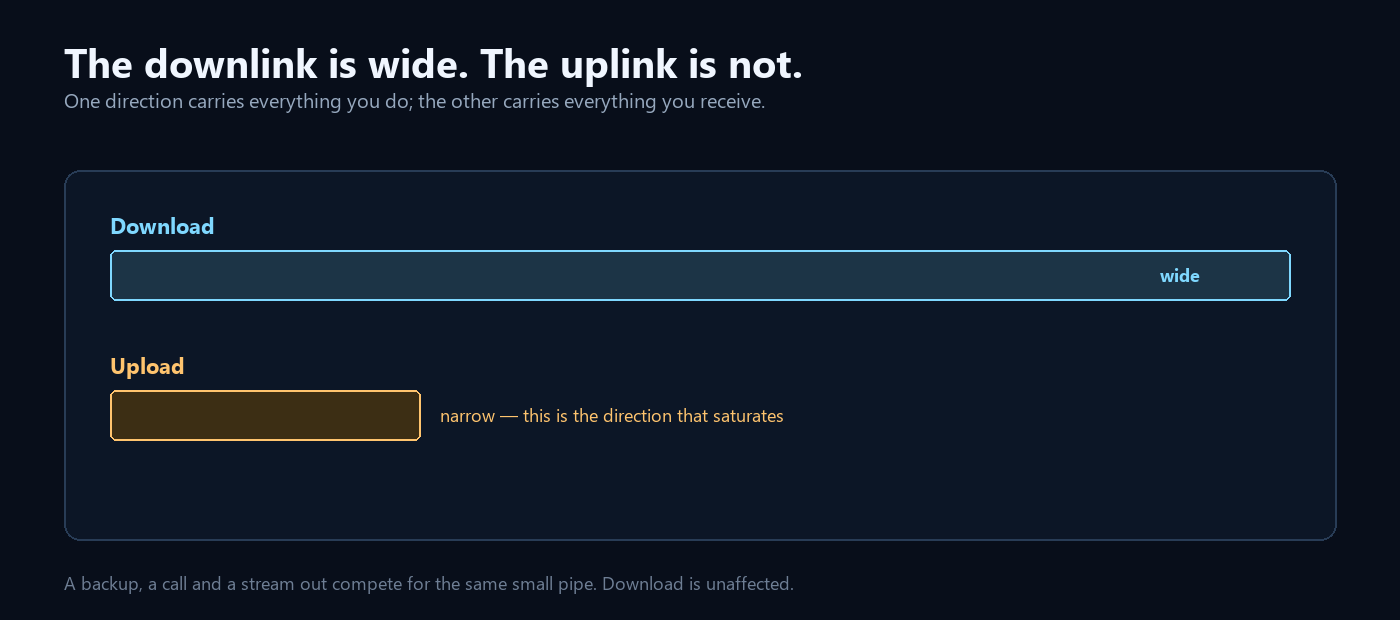
When a video call breaks up but the download speed test still shows 150 Mbps, the upload is almost always the thing that broke. Upload is the narrow direction on a satellite link, and it is the first thing to saturate because everything you send — a call, a backup, a stream, a screen share — competes for the same small pipe.
The good news is that this is one of the few faults you can diagnose and fix in the same evening, without buying anything.
Three checks, five minutes
1. Find the upload number. In the app, open Statistics and note the upload figure during the problem, not after it. If it is in single digits in Mbps, you are near the ceiling already; a single backup can consume all of it.
2. List what is sending. On a computer, open the network monitor (Activity Monitor on macOS, Task Manager on Windows) and sort by network. Cloud backups, photo sync, game updates and browser tabs with video in them all upload continuously.
3. Test with everything else off. Pause the top uploader and retry the call. If the call instantly improves, you have your answer and it is not a hardware fault.
If the pause fixed it, work down this list
The single most common cause. A cloud backup is designed to use spare capacity, and there is no spare capacity on a satellite uplink. Move the window to the small hours and the daytime problem disappears.
Capping the heaviest device to roughly 80 percent of the available upload stops the queue from filling. Crude, effective, and it costs nothing — a router setting rather than a purchase.
Live streaming wants a stable uplink more than a fast one. Set the encoder to a bitrate below your measured upload rather than letting it chase the maximum, and the picture stops collapsing every time something else sends a packet.
If the same devices are fine at 10am and unusable at 9pm, the constraint is upstream of your install. Nothing in the house fixes a shared pool.
Two-person households hit this first
One person on a call uses 1–3 Mbps up. Two people on calls at once use double that, and if either is also syncing photos, the link is saturated before anyone notices why.
The symptom looks personal — “your call keeps breaking up” — which is why it turns into an argument about whose laptop is faulty rather than a measurement. The fix is the same list of three settings, applied to both devices.
Why upload is the scarce direction
Every consumer satellite link is asymmetric by design: the download side is built wide because that is what most traffic is, and the upload side is narrow because putting capacity there costs the same and serves fewer people’s habits.
That asymmetry is fine until your usage pattern stops matching it. A household that only watches is a perfect fit. A household that backs up, streams out, or works on video calls is asking the narrow side to do wide-side work, and there is no amount of download speed that helps.
| What you do | Upload needed | What happens if it is not there |
|---|---|---|
| Video call, one person | 1–3 Mbps | Voice drops out, video freezes |
| Screen share | 2–4 Mbps | Slides arrive seconds late |
| Cloud backup running | Whatever it can get | Everyone else queues behind it |
| Live stream at 1080p | 4–6 Mbps sustained | Encoder drops quality, then stalls |
The setup that stops it happening again
Three settings, once, and most of these complaints never come back.
- Schedule backups for the small hours. Both cloud drives and phone photo sync have this setting, and it is usually off by default.
- Cap the uplink at about 80 percent. A router with simple QoS can reserve headroom so a call always fits, even while something else uploads.
- Set the encoder bitrate below the ceiling. For streaming, the target is stability, not maximum quality — a stream that never drops beats a sharper one that stalls.
What this means for buying decisions
Nothing in this article is solved by a better mount, a longer cable or a bigger battery. Upload is a property of the service tier and the cell, not the hardware on your roof — which is why buying equipment to fix it is the most expensive way to learn this lesson.
The one purchase that does help is a router with real queue management, if yours has none. That is a network upgrade, not a Starlink accessory, and it is worth doing only after you have tried the free version of the same fix.
When to contact support
Contact support when a wired device, with nothing else sending, measures upload far below your plan at a quiet time of day, consistently for several days. That is a service-side measurement and worth a ticket. Evening-only upload collapse is congestion and will be closed as such.
One diagnostic that settles the household argument: run an upload test while both calls are active. If the number is flat at the ceiling, nobody’s laptop is broken — the link is simply full, and the answer is scheduling or capping rather than replacing anything.
If the numbers on both sides look healthy and calls still break, suspect jitter rather than bandwidth — a link that averages 3 Mbps up but dips to 0.5 for a second will drop audio, and the dip is what the average hides.
Do this today: open your backup client and find the schedule setting. If it runs during waking hours, move it to 2am. That single change fixes more “my calls keep dropping” complaints than any hardware upgrade.
This is part of the troubleshooting index. If the problem is that everything feels slow rather than calls specifically, why a speed test can be fine while everything stalls covers bufferbloat, and how cells work explains the shared pool behind the evening pattern.