The router that arrives with a Starlink kit is the least interesting part of the system, and the one people most often replace for the wrong reason. It does not talk to satellites, it does not point the dish, and it does not affect your latency. Its job is Wi-Fi and network address translation, and it does that job about as well as a mid-range consumer router.
So the useful question is not “is the Starlink router any good”. It is “what does it actually do, and at what point does something else do it better”.
What the router actually does
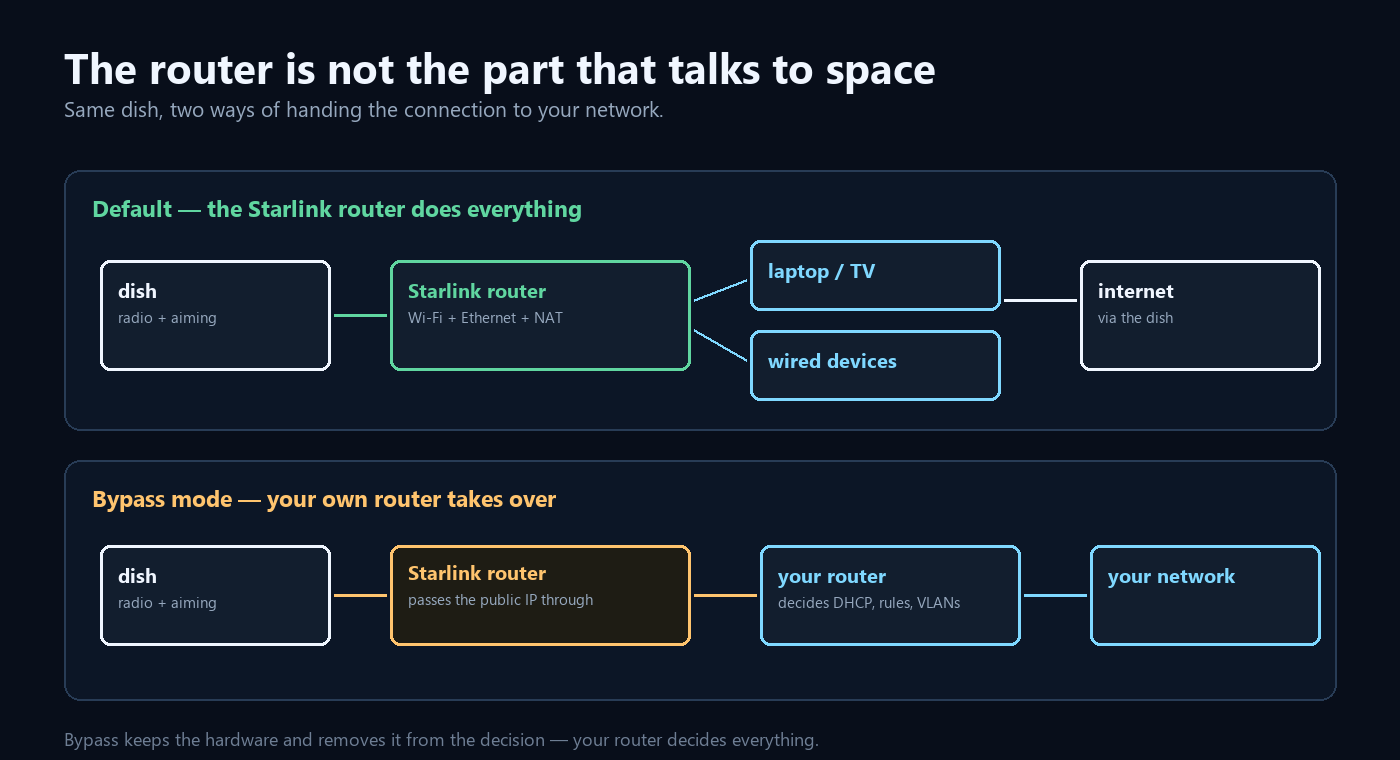
The dish handles the radio link, the aiming and the satellite handoffs. The router takes the resulting connection and turns it into a normal home network: it hands out addresses, provides Wi-Fi, and gives you Ethernet ports to plug things into.
The current kit router covers Wi-Fi 6 and two Ethernet ports. Earlier generations differ — the second-generation router has no Ethernet port at all without an adapter, which is where most of the confusion in forums comes from.
Three setups, three verdicts
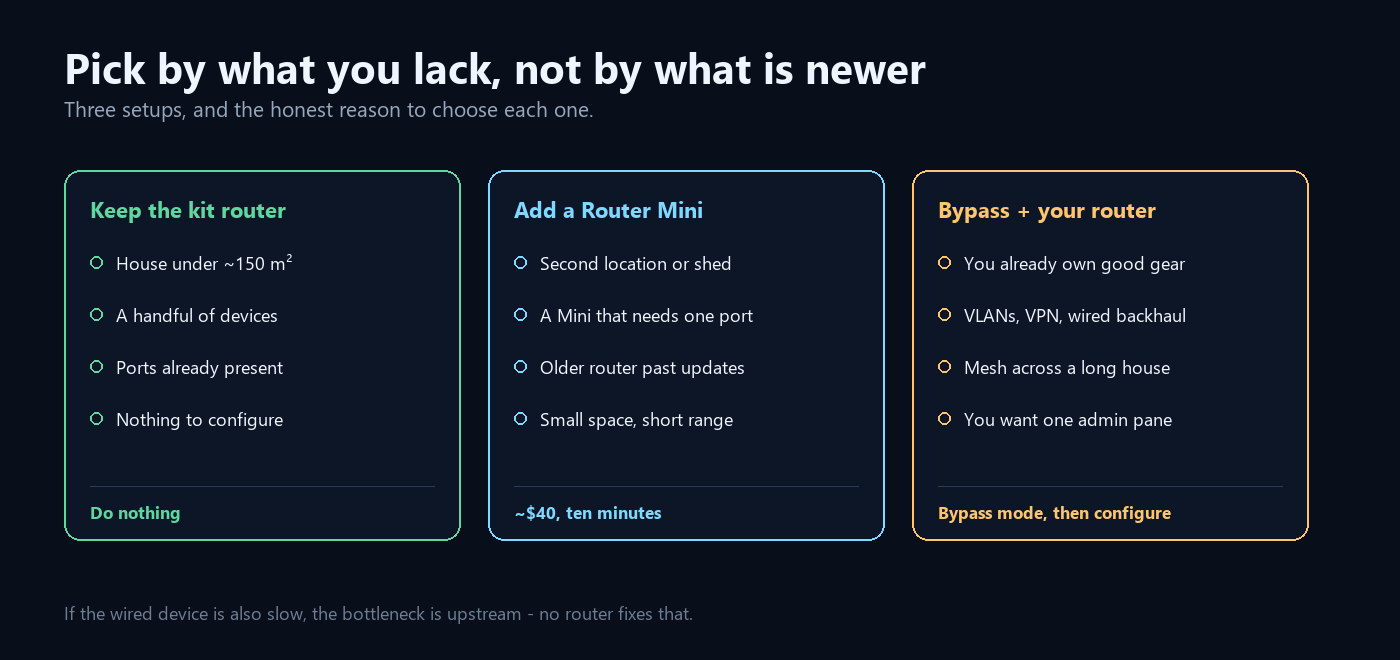
For a house under about 150 square metres with a handful of devices, the supplied router is entirely adequate. It is covered by the same support path, it updates itself, and replacing it adds a failure point for no daily benefit.
It brings Wi-Fi 6 and two Ethernet ports to setups that lack them, in a package the size of a phone charger. That is a real upgrade for a second location, a small flat or a Mini install that needs a wired port. It is not an upgrade for a house already served by the current kit router.
Bypass hands the public address straight to your router, which then decides everything: DHCP, firewall rules, VLANs, mesh backhaul, VPN. Worth doing if you already own good network gear or need something the supplied router cannot do. Not worth doing just to see a different interface.
The coverage problem is not a router problem
Most complaints about Starlink Wi-Fi are complaints about physics. A single router in a cupboard at one end of a long house will not cover the far bedroom, no matter which brand is printed on it.
The fixes are the same as they have always been: move the router out of the cupboard, add a mesh node, or run a cable to a second access point. A wired access point beats a mesh node every time if you can get the cable there, because it halves the airtime contention.
| Symptom | Likely cause | Cheapest fix |
|---|---|---|
| Fast near the router, dead in one room | Distance and walls | Move it, or add an access point |
| Slow everywhere, worse in the evening | Cell congestion, not Wi-Fi | Nothing in the house helps |
| Devices disconnect when the microwave runs | 2.4 GHz interference | Move to the 5 GHz band |
| Only wireless devices drop, wired is fine | Wi-Fi, not the satellite link | Channel change, or wire the device |
Mesh node or wired access point
A mesh node repeats the signal over Wi-Fi. A wired access point gets its backhaul over a cable. Both extend coverage; only one of them halves the airtime cost.
If a cable route exists — even an ugly one along a skirting board — run it. A cheap access point on the end of that cable will outperform an expensive mesh kit in the same position, because the mesh node’s own link back to the router competes for the same spectrum your devices are using.
Where no cable is possible, mesh is the right answer and a second node placed half way between the router and the dead zone beats one placed in the dead zone itself. That is the mistake almost everyone makes: the node needs a good signal to repeat.
The Router Mini, specifically
It is a small Wi-Fi 6 router with a LAN port and a WAN port, roughly the size of a chunky phone charger, sold separately for around forty dollars. Starlink positions it for small spaces and for adding coverage without a full mesh kit.
Two groups should care. Owners of older hardware that no longer receives software updates — Starlink has been offering those users an upgrade path — and anyone running a Mini where they need one wired port without buying a full router.
Everyone else can ignore it. Adding a second Wi-Fi 6 router next to a Wi-Fi 6 router does not make the internet faster.
Starlink’s own install guide is more specific than the shop page, and three details matter. The unit meshes with current kits but not with the Gen 1 router. In a wired mesh, the cable runs from the LAN port of your main router or Mini to the WAN port on the Router Mini — and on the Gen 3 router you have to lift a protective cover to reach those ports at all. The guide also suggests keeping nodes no more than two rooms apart, off the floor, and away from the sort of wall that stops a signal.
In the box: the router, its power supply, a stand, two drywall anchors and two screws. Wall-mounting needs a 5.5 mm bit, and the unit measures 138 × 83.6 × 27 mm — small enough to sit on a shelf without being noticed.
What to check before buying anything
- Does your router have Ethernet ports? If it does not and you need one, a small router is cheaper than replacing the whole setup.
- Does it support bypass mode? Almost all current kits do; check yours before planning a third-party router around it.
- Is the problem actually Wi-Fi? Test one device over a cable before buying hardware. If the wired device is also slow, no router will help.
- Do you need one network or two? A second router in a shed or garage is a coverage question, not a performance one.
One more thing worth knowing: the router’s position matters more than its specification. A mid-range router in the middle of the house beats a flagship router in a metal cabinet at one end, every time. If you are not willing to move it, do not buy a better one.
Do this today: plug one device into the router with a cable and run a speed test, then run the same test on Wi-Fi from the same spot. The gap between those two numbers is what a better router can fix. If there is no gap, the bottleneck is somewhere else and you have just saved yourself the purchase.
This is part of the Starlink 101 framework. If the wired question is what sent you here, which Mini accessories actually give you a port covers that in detail, and the hardware chapter explains where the router sits in the chain.