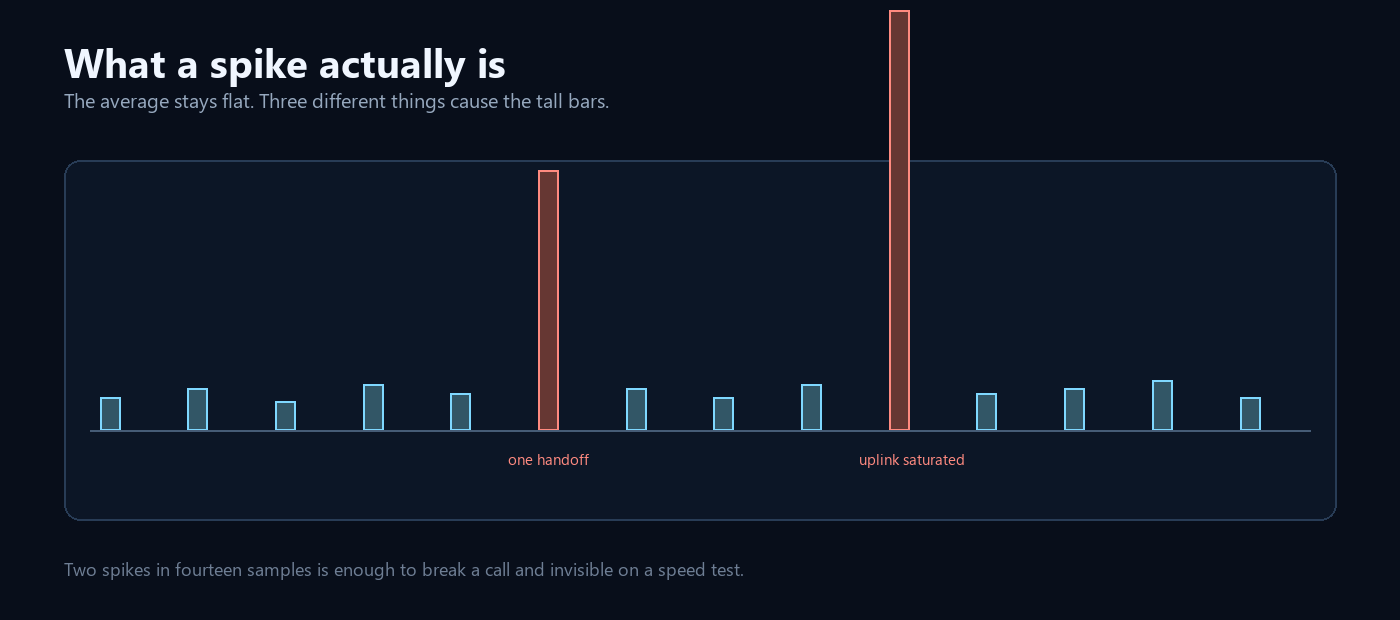
A game that stutters for a second and then recovers is not a slow connection. It is a link that averages well and spikes badly, and the spike is what the game — or the call — actually experiences. Two spikes in a fourteen-sample window is enough to lose a fight or a sentence.
This one is diagnosable without buying anything, and the three checks below separate the causes.
Three checks, five minutes
1. Measure the spikes, not the average. Ping a server you actually use for ten minutes and sort the results. If the worst ten are more than about three times the median, you have a jitter problem and the average is lying to you.
2. Note when the spikes happen. Evenly spaced ones, every fifteen seconds or so, are handoffs. Clusters under load are queues. Spikes that only happen in the evening are the cell.
3. Check what is uploading. Open the network monitor and look for anything sending continuously — cloud sync, game updates, a phone backing up photos. On a satellite link a single uploader can add a hundred milliseconds to everyone else’s packets.
If the spikes are regular, work down this list
The dish moves between satellites periodically, and each handoff costs a few milliseconds — occasionally more if the next satellite is marginal. An obstruction that clips the incoming link makes these much worse. Check the obstruction figure before blaming the game.
One device can fill the uplink queue and add latency to everything behind it. Rate-limit the uploader to about 80 percent of the available uplink and the spikes largely disappear without any loss of usable speed.
Shared queue, not your equipment. Nothing on your roof changes it. Scheduling around the peak is the only free lever.
Neighbouring networks, distance, or a device hopping between bands. The satellite link is innocent; this one is solved inside the house.
Two numbers worth writing down
For games, the threshold people notice is around 60 ms of latency and roughly 30 ms of jitter. Below both, play feels normal. Above either, you start compensating instead of reacting — and you will lose fights you would have won on a wired line.
For calls, the thresholds are looser on latency and tighter on jitter: a steady 90 ms is fine, and a 40 ms line that jumps to 200 every minute is not. That asymmetry is why the same connection can be acceptable for one and unusable for the other.
What a game actually feels
Games send small packets constantly and react to whichever arrives last. A steady 55 ms feels better than a 35 ms line that spikes to 120 twice a minute, because your aim is compensating for the spike rather than the average.
A useful practical test: play for ten minutes and note every time something felt wrong, with a timestamp. Then compare those timestamps to the ping log from the same period. If the moments line up, you have measured the problem instead of guessing at it — and that is the evidence that separates a queue you control from a network you do not.
Why the average misleads
A call or a game does not experience the average. It experiences each packet, and a packet that arrives 150 ms late is a packet that arrived late, no matter what the mean says.
This is also why a speed test keeps passing: it fills the pipe for a few seconds and reports throughput, which is unaffected by a spike that lasts a tenth of a second.
| Pattern | Cause | Fix |
|---|---|---|
| Every ~15 s, low amplitude | Handoff | Nothing, unless obstruction is high |
| Random, correlated with uploads | Bufferbloat | Rate-limit to 80% of uplink |
| Evening only | Cell congestion | Schedule, or accept it |
| Only on Wi-Fi clients | Local network | Channel change or cable |
The hidden spike source: your own Wi-Fi
Before blaming the satellite, rule out the wireless link. A phone that wanders between bands, a router scanning for the best channel, or a neighbour’s network that appears and disappears can all produce spikes of 50–200 ms that look exactly like a network problem.
The test is the cable. If a wired client has a flat log and a wireless one has spikes in the same ten minutes, the satellite link is not the cause and no amount of aiming or upgrading will fix it.
Common culprits, in order: 2.4 GHz congestion in a dense area, a device set to prefer the stronger signal rather than the faster band, and a router positioned inside a cabinet. None of these need a purchase to diagnose.
When to contact support
Contact support when a wired device shows spikes with nothing else uploading, at a quiet time of day, consistently for several days — and the obstruction figure is near zero. That combination points at the service rather than your install, and the ping log is the evidence that makes the ticket actionable.
One more thing worth knowing: the fix for spikes is almost never a new dish. Handoff behaviour, cell load and queueing are all properties of the network you are attached to. What you control is the queue you create — which is why the rate-limit suggestion appears in three of the four rows above.
If you take one thing from this: spikes are a measurement problem before they are a hardware problem. Ten minutes of ping data sorts the four causes, and three of the four fixes cost nothing.
Do this today: run a ten-minute ping while doing whatever normally stutters, save the output, and sort it. The worst ten numbers tell you which of the four rows above you are in, and that is the whole diagnosis.
This is part of the troubleshooting index. If the problem is sustained slowness rather than spikes, why a speed test can be fine explains bufferbloat properly, and how cells work covers the shared pool behind the evening pattern.