If you live somewhere the cable company never bothered to wire, Starlink is the first satellite service that actually feels like broadband. If you already own a dish, this guide is also for you — most of the complaints people post about come down to three fixable things: obstructions, congestion, and expectations. Here’s what Starlink is, what it really costs, how to install it without regret, and how to get the most out of the hardware you already have.
The short version
- It’s low-Earth orbit, and that’s the whole trick. Satellites at roughly 550 km instead of 35,786 km, which cuts latency from 600–700 ms to 25–60 ms.
- Expect 25–220 Mbps down, 5–25 Mbps up. Where you land in that range depends mostly on how crowded your cell is and what time it is.
- Hardware is now rented, not bought. New US accounts pay a monthly hardware fee (around $10) instead of a one-time kit purchase.
- Run the obstruction check before you order. It’s free, takes two minutes, and it’s the difference between “this is amazing” and “this drops every four minutes.”
- Best fit: rural and exurban homes with no wired option, RVs, boats, job sites, and backup connectivity. Worst fit: dense suburbs that already have fiber.
Why it’s different from the satellite internet you remember
HughesNet and Viasat park their satellites in geostationary orbit, about 35,786 km up. The signal alone — there and back — is roughly 480 ms of pure physics, and real-world latency lands around 600–700 ms. That’s why legacy satellite internet feels like a phone call to another continent: video calls talk over each other, and gaming is off the table.
Starlink flies much lower, in shells roughly 340–570 km up (most commonly cited around 550 km). The round trip drops to 25–60 ms, which is in the same neighborhood as cable. Bandwidth is only a few times better than legacy satellite; latency is more than ten times better — and latency is what makes a connection feel fast or awful.
| Connection | Typical download | Typical latency | Best for |
|---|---|---|---|
| Fiber | 300–1,000+ Mbps | 5–20 ms | Anything, if it’s available |
| Cable | 100–1,000 Mbps | 15–35 ms | Most households |
| 5G home internet | 50–300 Mbps | 25–50 ms | Suburbs with good signal |
| Starlink | 25–220 Mbps | 25–60 ms | No wired option, mobile, backup |
| Legacy satellite | 25–100 Mbps | 600–700 ms | Nothing else available |
Is it right for your address?
Be honest about which bucket you’re in. Starlink is excellent at one job and mediocre at another.
- No cable, no fiber, DSL at 3 Mbps. You are the customer Starlink was built for. Order it.
- Cable or fiber exists but is unreliable or expensive. Starlink as a second line is genuinely useful — automatic failover with a dual-WAN router is a common setup.
- Dense suburb with fiber already in the ground. You’ll pay more for less. Fiber wins on price, upload, and consistency.
- Apartment with no roof or yard access. It can work from a balcony with a clear view, but you need roughly 100 degrees of open sky and a landlord who doesn’t mind a dish. Check before you buy.
- You move around — RV, boat, seasonal property. A roaming plan or the Mini is the right answer, not a standard residential plan tied to one address.
What it actually costs
Starlink’s pricing has changed more than once recently, and it is quoted per service address — two houses in the same state can see different numbers. As of late 2026, the structure looks like this:
- Hardware is rented, not sold. Since mid-2026, new US accounts pay a monthly hardware fee — around $10/month — instead of a several-hundred-dollar one-time kit purchase. This lowers the entry cost and raises the long-run total.
- Plans are tiered, and the tiers are about priority, not just speed. There’s a cheaper “Lite”-style tier, a standard residential tier, and higher-priority tiers for business. The cheaper tier is fine for streaming and browsing; it’s the first to feel congestion at 8 p.m.
- Roaming plans cost more and travel with you — typically a limited-data version and an unlimited version, with the caveat that roaming traffic can be deprioritized behind residential users.
- Taxes and fees are extra, and there’s no contract, so you can cancel or change tiers month to month.
Don’t trust any blog post (including this one) for today’s exact number. Enter your address at starlink.com and it will quote you the real price, availability, and hardware terms for your location in about thirty seconds. Also confirm the current trial/return window at checkout — it has changed before.
What speeds to expect — and why yours vary
Published ranges are 25–220 Mbps down and 5–25 Mbps up, with 25–60 ms latency. In practice:
- Rural and low-density areas routinely see 150–220 Mbps, sometimes more off-peak.
- Crowded suburban cells can drop to 25–50 Mbps between 7 and 11 p.m. This is congestion, not a broken dish.
- Upload is the real constraint. 5–25 Mbps is fine for Zoom and cloud backups of documents, painful for large video uploads, live streaming, or syncing a big NAS.
- Heavy rain can take 10–40% off your throughput temporarily. Light rain and clouds barely matter.
Every Starlink cell covers roughly a 15–25 km diameter, and everyone in it shares the same capacity. That single fact explains most of the speed variation people argue about online.
Before you order: the two-minute check that saves months of regret
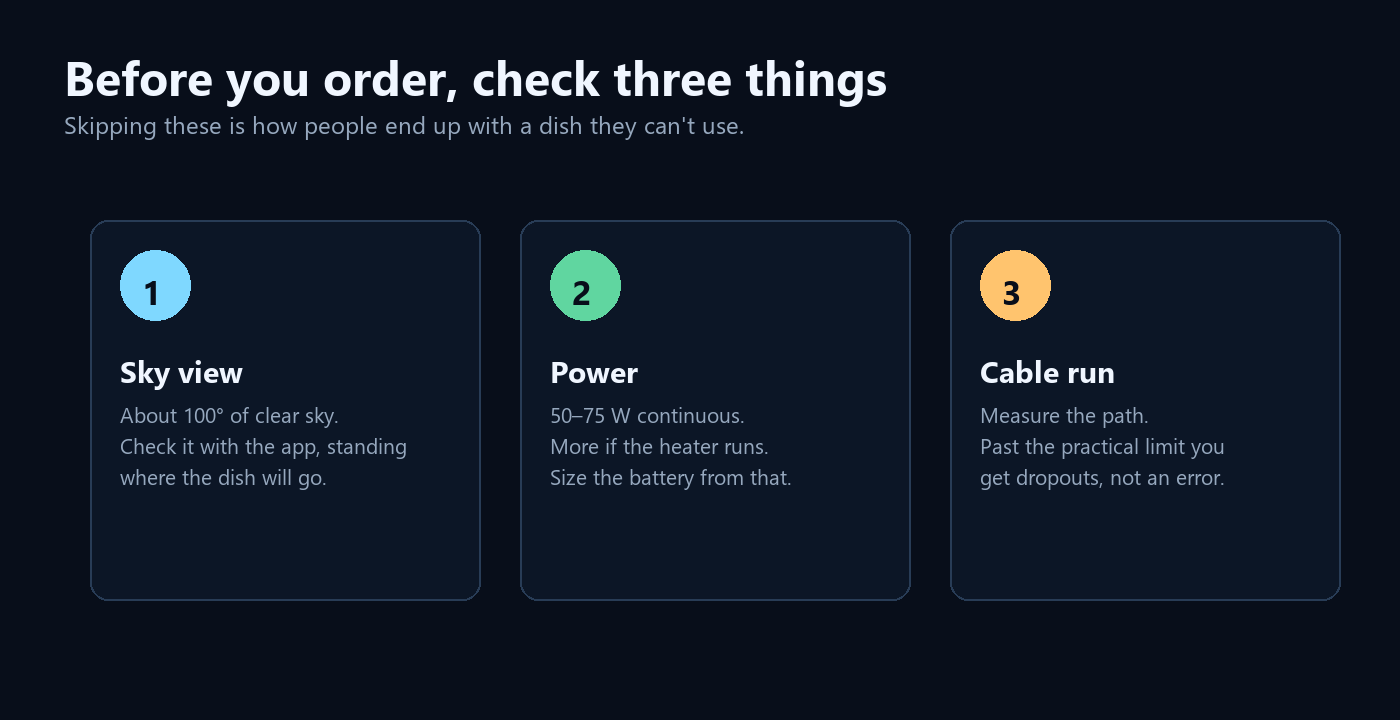
Open the Starlink app and use the obstruction/visibility tool where you plan to put the dish. Walk the spot, hold the phone up, and let it map the sky. You want a wide-open view — think roughly 100 degrees. Trees are the number one cause of “my internet keeps dropping,” and no amount of support tickets fixes a maple tree.
Three practical notes from people who’ve done this:
- Higher is better, but not at any cost. Roof or eave mounting beats a ground mount behind a treeline. If you must choose, favor a clear sky view over a tidy cable run.
- Snow matters in cold climates. The dish has a snow-melt mode, but it draws significantly more power in winter — plan for that if you’re off-grid.
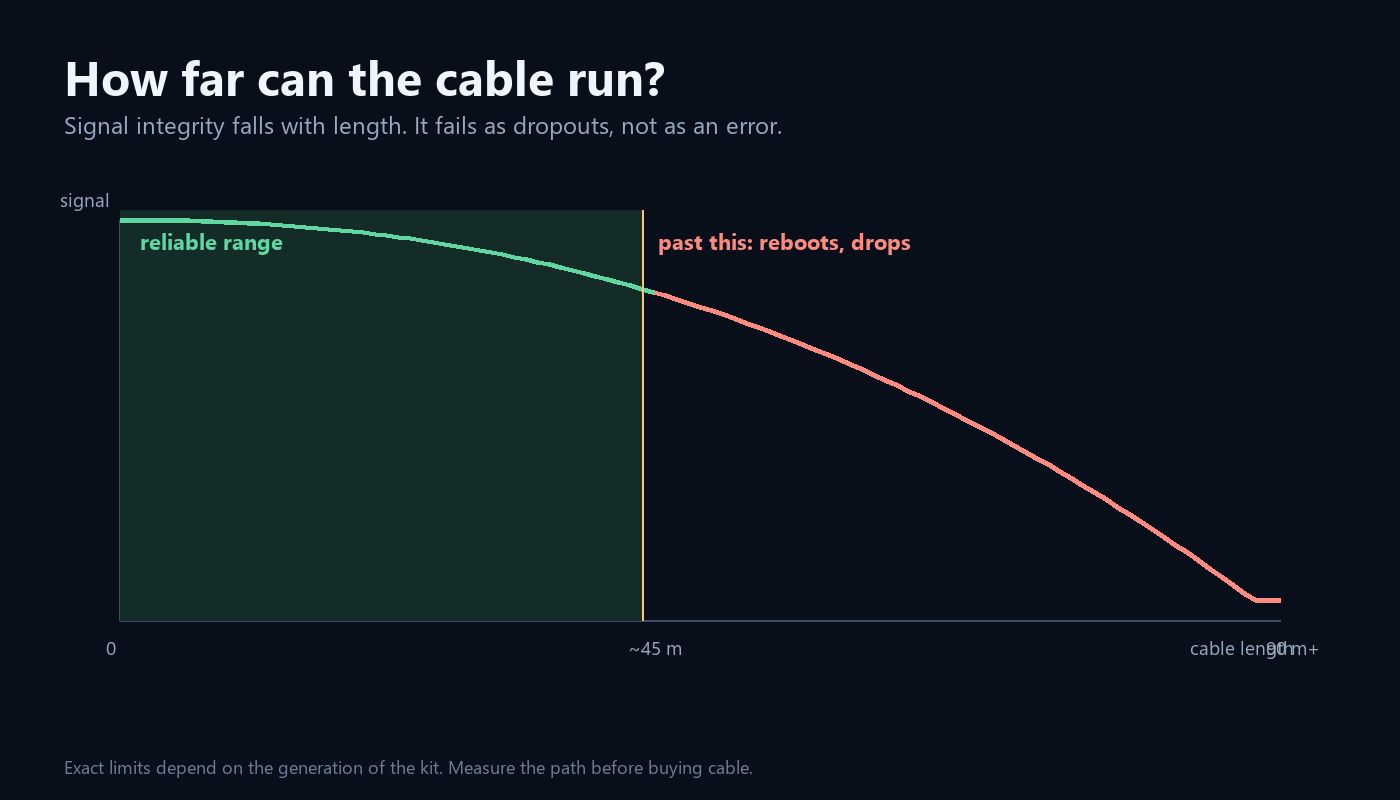
- Cable length is a limit. Standard cable runs are 50–150 feet depending on kit; beyond that you’re into extensions and voltage drop. Measure before you commit to a mount location.
Installation in practice
Self-install is genuinely a weekend-afternoon job: mount the dish or set it on its stand, run the cable, plug into the router, and let the app point it. The dish aims itself — there’s no aligning to do.
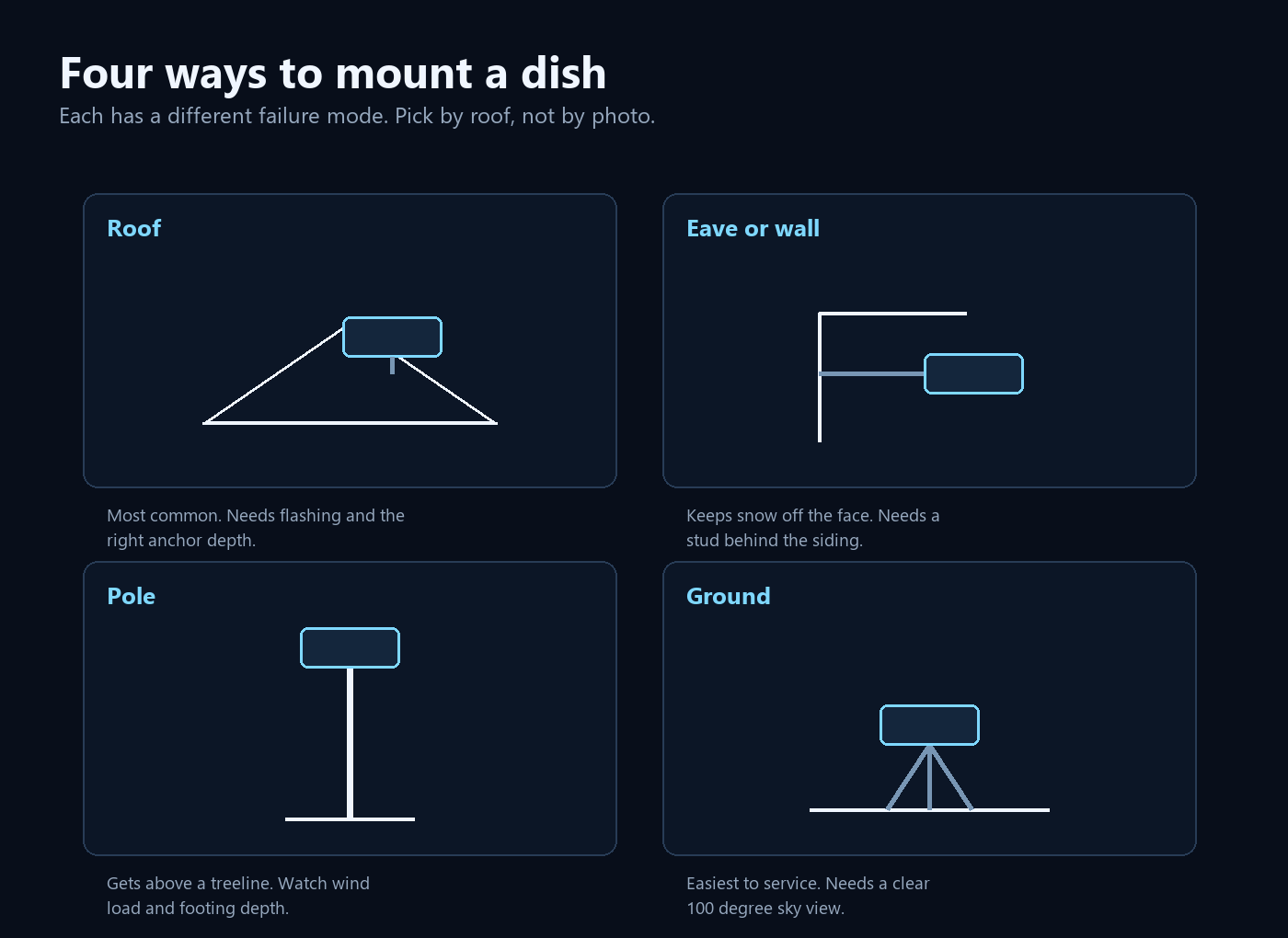
- Mounts: ground pole, eave/roof mount, or a non-penetrating roof mount if you rent. Avoid mounting where snow slides off a roof onto the dish.
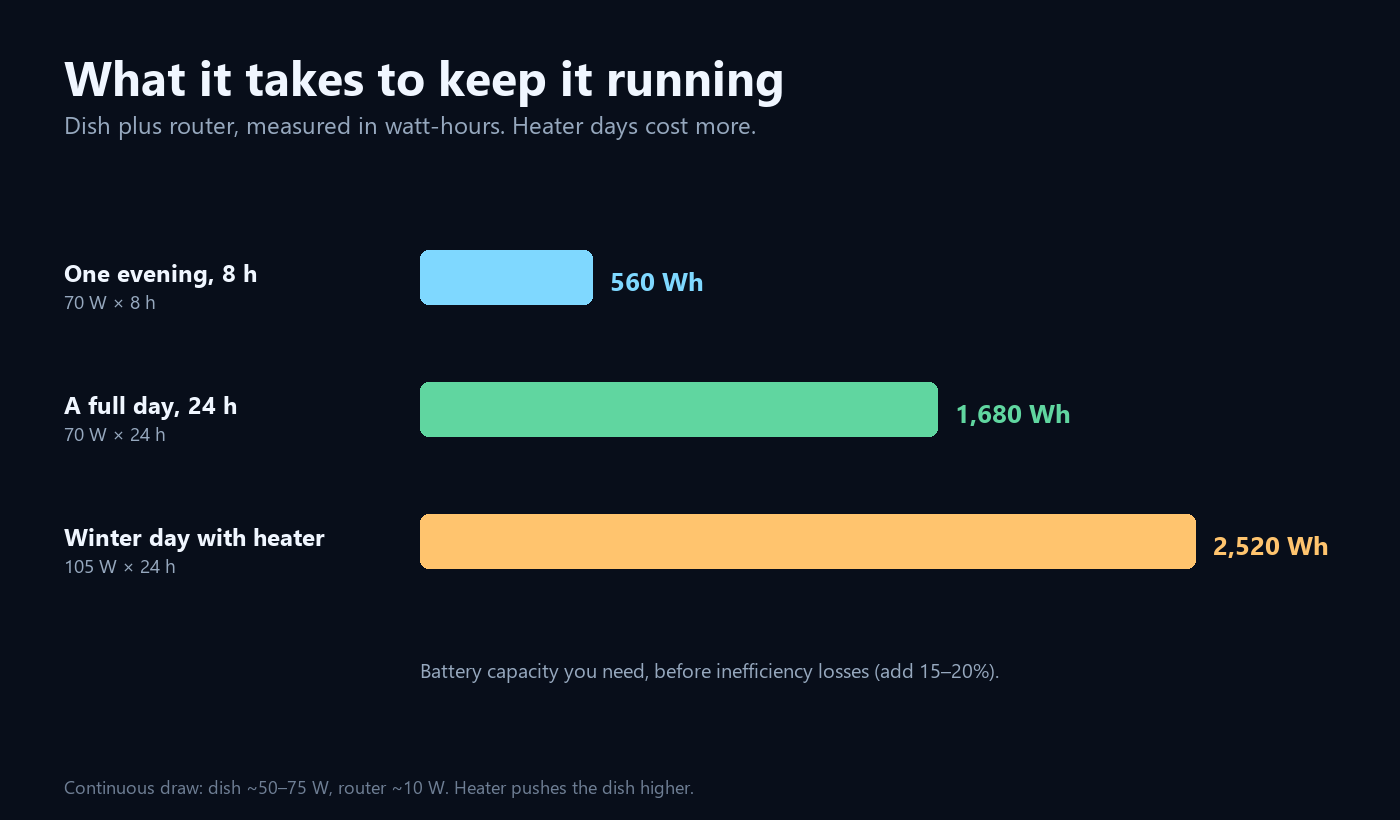
- Power: the standard dish draws somewhere in the 50–75 W range; the Mini is far lower, roughly 25–40 W. Budget for a small UPS or a power station if outages are common — the dish needs power even when the grid doesn’t.
- Grounding and cable entry: if you’re drilling through a wall or roof, do it properly and seal it. A $10 tube of sealant prevents a $2,000 repair.
- Aiming: none. Power it up, wait a few minutes for it to find the constellation, and check the obstruction map in the app afterward. If it shows red, move it.
If you already own one: getting more out of it
Most “Starlink is bad” experiences trace back to one of these. Work through them in order.
| Symptom | Likely cause | What to do |
|---|---|---|
| Slow every evening, fine at 3 a.m. | Cell congestion | Test at different hours; consider a higher-priority tier if it’s chronic |
| Drops for a few seconds, repeatedly | Obstruction (tree, chimney, pole) | Check the app’s obstruction map; raise or relocate the dish |
| No internet after snow or ice | Snow accumulation / melt mode | Enable heating, clear the face, check the cable for ice damage |
| Speeds fell after moving the dish | Worse sky view, longer cable run | Re-run the obstruction check; shorten the cable |
| Random reboot around 3 a.m. | Firmware update | Normal — leave it powered |
| Can’t reach the admin page | Wrong IP / bypass mode | Use the app; check router mode settings |
Two more things worth knowing as an owner: you can put the Starlink router into bypass mode and use your own router or mesh system — most people with a real home network do. And support runs through the app (tickets, not phone calls); responses are usually reasonable but not instant, so keep a backup connection if you work from home.
Taking it with you: RV, boat, and travel
Portability is one of Starlink’s best features and one of its most confusing. The short version: a standard residential plan is tied to a service address, and moving it means changing that address in your account — which only works if the new location has capacity. A roaming plan travels with you, at a higher price and lower priority. If you’re primarily mobile, buy for mobile from the start instead of trying to bend a residential plan.
The Mini is the model people actually carry: small enough to toss in a backpack, low power draw, and good enough for remote work and streaming. It’s slower than the full-size dish and more sensitive to a bad sky view, but it’s the difference between having internet at a campsite and not.
Frequently asked questions
Can I use it for gaming?
Yes. 25–60 ms is playable for most titles. Competitive shooters will notice occasional jitter and the odd disconnect during heavy weather; it’s not going to match fiber for consistency.
Does it work in an apartment?
Sometimes. You need a clear view of the sky and permission to mount something. A balcony facing the wrong direction, or a courtyard surrounded by taller buildings, will not work no matter how good the dish is.
How is it different from 5G home internet?
5G home internet is cheaper and faster where the signal is good, but it’s only sold where carriers have capacity — usually the same suburbs that already have cable. Starlink’s advantage is that it works where nothing else does.
Is there a data cap?
Not a hard cap on mainstream plans, but priority data is finite: after a threshold, or during peak hours on lower tiers, your traffic is deprioritized. You’ll feel it as slower speeds, not a cutoff. Terms vary by plan — check yours in the account portal.
Will it work during a power outage?
Only if you power it. The dish and router both need electricity — a UPS or power station rated for 100–150 W for a few hours is a sensible pairing if outages are common where you live.
How long does installation take?
An hour or two for a straightforward mount and cable run, plus a few minutes for the dish to acquire satellites. The app walks you through it.
The bottom line
Starlink’s real achievement isn’t raw speed — it’s turning “is there infrastructure here?” into “is there sky here?” For a house at the end of a dirt road, a boat, or a job site, that’s not a luxury; it’s the difference between being online and not.
But it has hard edges: fiber beats it in town, trees beat it anywhere, and the price is real. Treat it as the best tool for a specific job rather than a universal upgrade, run the obstruction check before you order, and set your expectations around 25–60 ms and a shared cell — and you’ll be happy with it.
Data note: subscriber counts, coverage, satellite totals, and pricing structure reflect public information as of late 2026 and change frequently. Speed and latency figures are ranges compiled from third-party testing; your results depend on cell density, obstructions, weather, and plan tier. Always confirm current pricing and terms at starlink.com for your service address.